HDD vs SSD: What’s the Difference and Which One Should You Choose?
HDD vs SSD: Let’s Make It Simple
Have you ever checked a laptop specification and seen “512GB SSD” or “1TB HDD” and wondered what those letters actually mean? You are not alone. HDD and SSD are both used to store your files, apps, and operating system, but they work in very different ways.
That difference affects how quickly your computer starts, how fast apps open, how much storage you can get for your budget, how much noise the drive makes and how well it handles everyday movement.
In this guide, we’ll explain HDD and SSD in simple English, compare them side by side, and help you understand which one may suit your laptop or desktop.
First, What Is Computer Storage?
Think of computer storage as the place where your digital belongings live. Your Windows or macOS installation, documents, photos, videos, applications, and other files remain on the storage drive even after you switch off the computer.
HDDs and SSDs perform this same basic job. The main difference is the technology they use to save and retrieve information.
What Is an HDD?
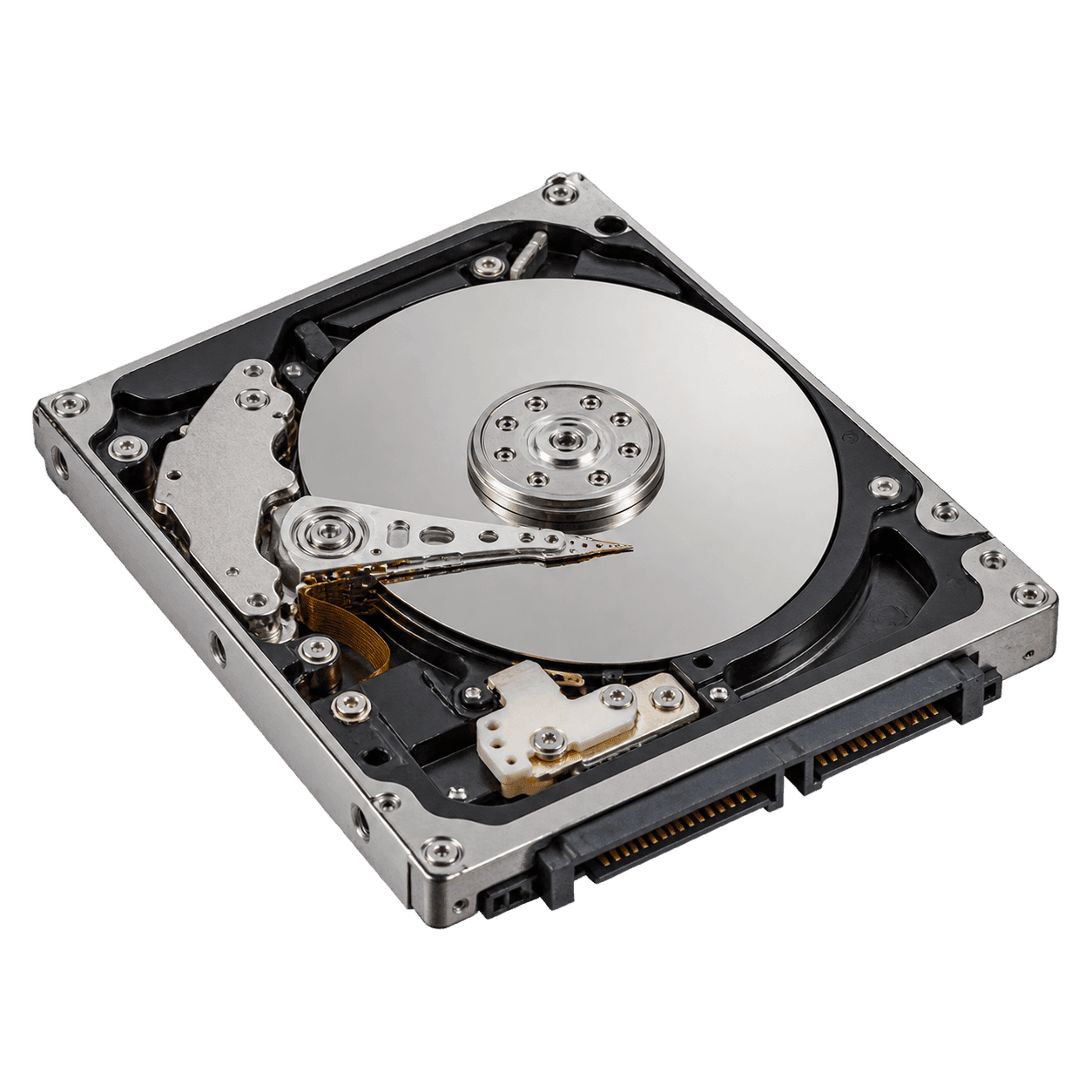
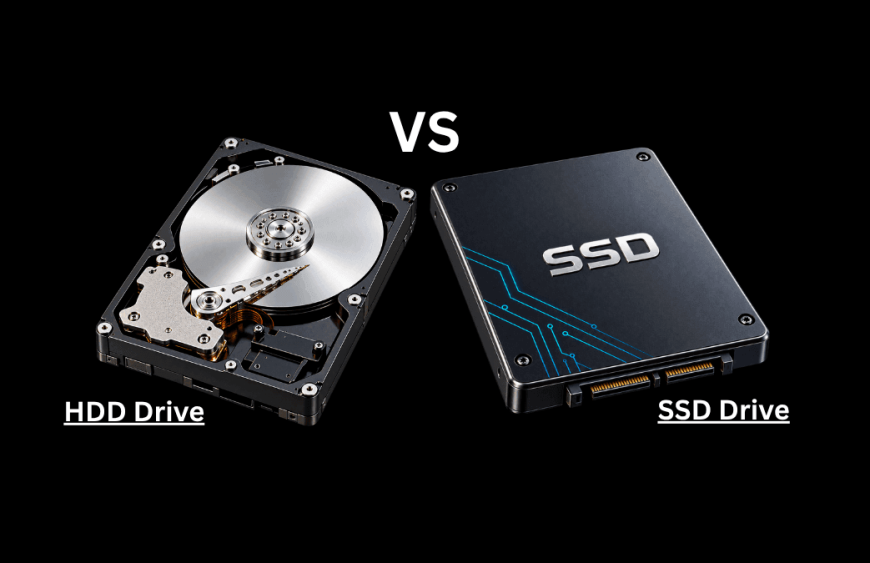
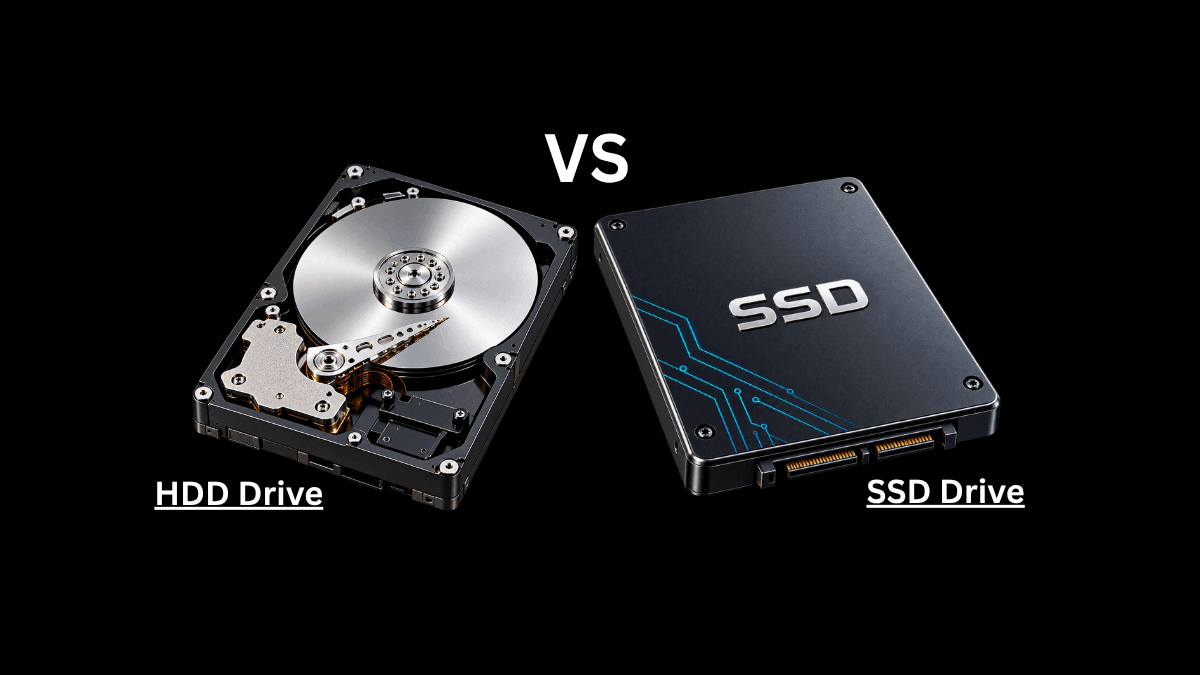
HDD stands for Hard Disk Drive. It is the older and more traditional type of computer storage. Inside an HDD are magnetic disks called platters. These platters spin while a small mechanical read/write head moves across them to find or save data.
A simple way to picture it is like a record player: the disk spins and a moving part has to reach the right location. Because an HDD uses moving parts, it is usually slower than an SSD and can be more sensitive to drops, bumps and vibration.
HDDs are still useful, especially when you need a lot of storage without spending as much per gigabyte. They are commonly used for large file collections, backups and archives.
Benefits of an HDD
- Large storage capacities are widely available.
- Lower cost per gigabyte in many high-capacity options.
- Useful for videos, photos, backups and other large files.
- A practical choice when storage space matters more than maximum speed.
What Is an SSD?
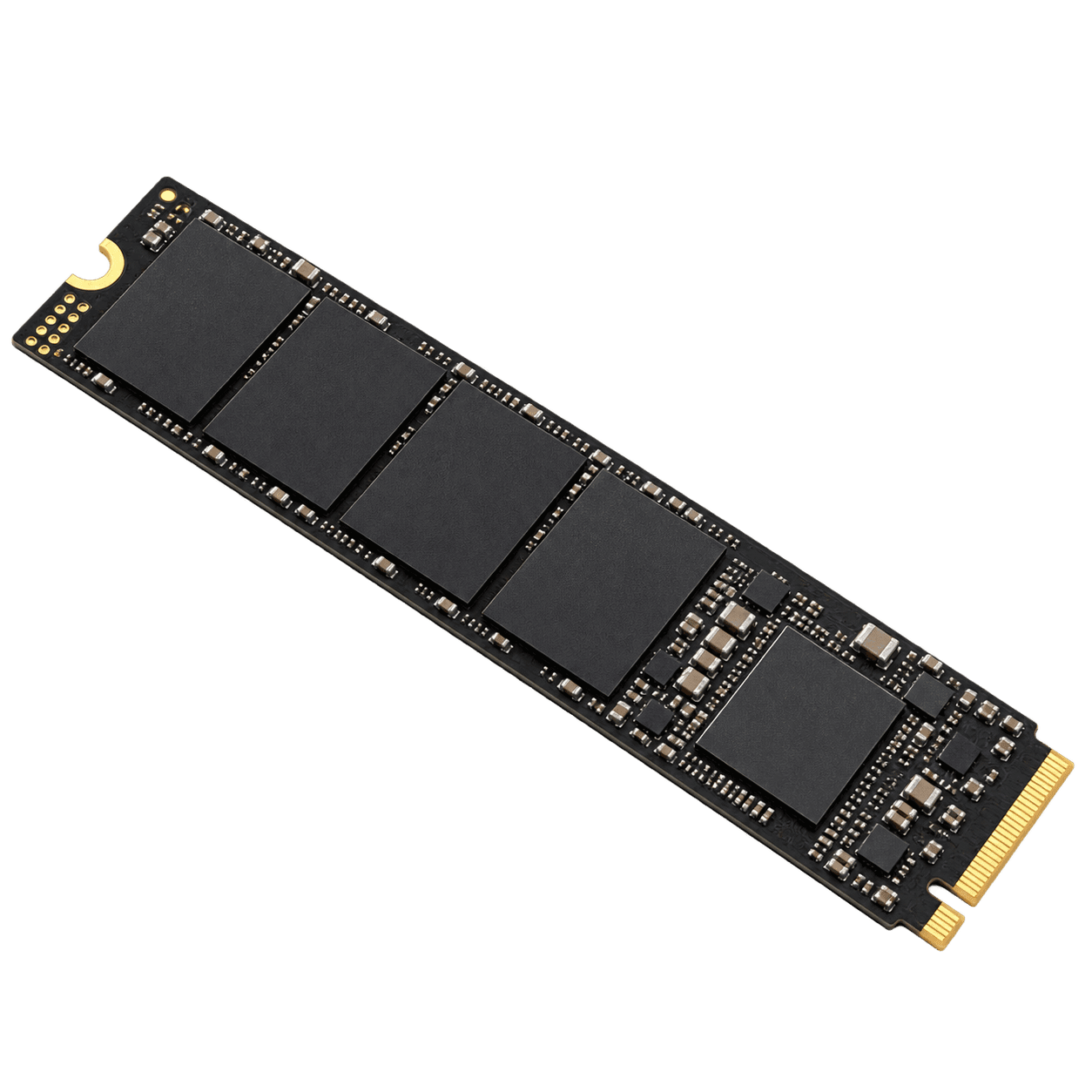
SSD stands for Solid-State Drive. Unlike an HDD, an SSD has no spinning platters or moving read/write head. It stores data using flash memory, which allows the drive to access information much more quickly.
This is why a computer with an SSD often feels faster during normal use. It can start up more quickly, open applications faster, and respond better when accessing files. Because there are no spinning parts, SSDs also operate silently.
Benefits of an SSD
- Faster startup and file access.
- Applications generally open more quickly.
- Silent operation.
- Better resistance to everyday bumps and movement because there are no moving parts.
- Often more power-efficient, depending on the drive and workload.
- Can make an older compatible computer feel much more responsive.
HDD vs SSD: The Main Differences
Now that we know how both drives work, let’s compare the things most people notice in everyday use.
1. Speed
This is usually the biggest difference. An HDD has to spin a physical disk and move a mechanical head before it can reach data. An SSD can access data electronically through flash memory.
In everyday terms, an SSD usually means less waiting when you start your computer, launch programs, search through files or load data.
For example, if a compatible laptop feels slow mainly because it still uses an old HDD, replacing that drive with an SSD can make a noticeable difference. Of course, storage is only one part of performance—the processor, RAM, software, and condition of the computer also matter.
2. Storage Capacity
Both HDDs and SSDs come in different capacities. HDDs are especially common when users need several terabytes of storage at a lower cost. SSDs are also available in large capacities, but higher-capacity models can cost more.
If you mainly store documents and use everyday applications, a moderate-size SSD may be enough. If you keep huge video libraries, backups, or project archives, you may prefer a larger HDD, a large SSD if your budget allows, or a combination of both.
3. Durability
Because an HDD contains moving parts, a strong impact while it is operating can damage the drive. An SSD has no moving mechanical parts, so it generally handles everyday movement better.
That does not mean an SSD cannot fail. Any storage device can develop a fault, so important files should always have a separate backup.
4. Power Use
HDDs need power to spin their platters and move mechanical parts. SSDs do not. Depending on the specific drive and workload, an SSD can use less power. For laptop users, that can be helpful, although total battery life also depends on the screen, processor, battery health, software, and how the laptop is being used.
5. Noise
An HDD can make spinning or clicking sounds because of its moving parts. An SSD is silent during normal operation because it has no mechanical parts.
6. Price
If your main goal is to get a lot of storage for less money, an HDD can still make sense. If speed and responsiveness are your priority, paying more for an SSD is often worthwhile. Prices change over time, so compare current options before buying.
HDD vs SSD Comparison Table
Feature | HDD | SSD |
Storage technology | Magnetic spinning platters | Flash memory |
Moving parts | Yes | No |
Speed | Generally slower | Generally faster |
Startup & app loading | Generally slower | Generally faster |
Noise | May produce mechanical noise | Silent |
Shock resistance | Generally lower | Generally higher |
Power use | Often higher | Often lower |
Cost per GB | Usually lower | Usually higher |
Large-capacity value | Very good | Good, but can cost more |
Best suited for | Large storage, backups, archives | Fast everyday computing and performance |
Which Is Better for a Laptop: HDD or SSD?
For most people who want a laptop to feel quick and responsive, an SSD is usually the more practical primary drive. It is especially useful for students, office workers, business owners, programmers, designers, and other users who open several applications during the day.
An HDD can still be a good choice when you need a lot of storage at a lower cost and speed is not your main concern. For example, it can work well as secondary storage for videos, photos, backups, and archived files.
Can You Use an HDD and SSD Together?
Yes—if your computer supports more than one drive, you can use both. A common setup is to install the operating system and frequently used applications on the SSD, then use the HDD for large files and backups.
This gives you the speed of an SSD for everyday work and the larger, lower-cost storage of an HDD. Before buying, check the number of drive slots, supported drive type and physical size your computer accepts.
SATA SSD vs NVMe SSD: One More Thing to Know
Not every SSD is the same. Two common types you may see are SATA SSDs and NVMe SSDs. A SATA SSD is already much faster than a traditional HDD for many everyday tasks. An NVMe SSD uses a faster interface and can offer much higher data-transfer performance.
However, your laptop or motherboard must support the drive you want to install. Do not buy an SSD based only on speed or appearance—check compatibility first.
When Should You Upgrade from HDD to SSD?
An SSD upgrade may be worth considering if:
- Your computer takes a long time to start.
- Programs take too long to open
- File access feels slow.
- You want quieter storage.
- Your current HDD is old and you are already planning a storage replacement.
Before replacing any drive, back up your important files. If you are unsure about compatibility or data migration, ask a qualified technician for help.
Final Thoughts: HDD or SSD?
Here is the simple answer: choose based on what matters most to you. If you want faster startup, quicker applications and a more responsive computer, an SSD is usually the better primary storage choice. If you need lots of storage at a lower cost, an HDD can still be very useful.
And if your computer supports both, you do not always have to choose one. Using an SSD for speed and an HDD for bulk storage can give you a practical balance.
Need Help Choosing or Upgrading Your Storage?
Not sure whether your laptop supports SATA SSD, NVMe SSD or a traditional hard drive? Samstof Technologies can help you check compatibility and choose a suitable storage option.
You can also explore laptops, MacBooks, computer accessories, and technical support from Samstof Technologies. Before any storage replacement or migration, remember to back up important data.