Buying a new laptop can feel confusing, especially when you see terms like CPU, RAM, SSD, GPU, resolution, processor generation, and refresh rate. You may wonder what all these specifications mean and which ones actually matter.
The good news is that you do not need to be a computer expert to choose a good laptop. You simply need to understand the important specifications and match them with what you plan to use the laptop for.
Whether you are a student, business owner, professional, gamer, creative, or someone who simply needs a laptop for everyday activities, this laptop buying guide will help you understand the laptop specifications to check before buying.
More importantly, it will help you avoid paying for specifications you don’t need – or buying a laptop that becomes too slow for your work after a short time.
What Are Laptop Specifications?
Laptop specifications are the technical details that describe what a laptop can do. They include its processor, memory (RAM), storage, screen, battery, graphics, operating system, connectivity, and other important features.
Think of specifications as the information on a laptop’s identity card. They help you compare different laptops and determine which one offers the right performance and value for your money.
Why Do Laptop Specifications Matter?
The specifications you choose affect how fast your laptop works, how many applications you can run at the same time, how much information you can store, and how well the laptop can handle your daily activities.
For example, a student who mainly uses Microsoft Word, browses the internet, attends online classes, and watches videos may not need the same specifications as a video editor, software developer, graphic designer, engineer, or gamer.
This is why buying the laptop with the biggest numbers is not always the best decision. The goal should be to buy the right specifications for your needs and budget.
10 Laptop Specifications to Check Before Buying
1. Processor (CPU)
The CPU, or Central Processing Unit, is often described as the brain of the laptop. It processes instructions and plays an important role in determining how quickly your applications and everyday tasks run.
When comparing laptops, you may see processors from Intel, AMD, or Apple.
For basic activities such as browsing, typing documents, watching videos, attending online meetings, and using office applications, an entry-level or mid-range processor may be enough.
For more demanding activities such as programming, video editing, gaming, engineering applications, data analysis, or running professional software, you should consider a more powerful processor.
Don’t Look at Core i5 or Core i7 Alone
One mistake laptop buyers sometimes make is assuming that every Intel Core i7 is automatically better than every Core i5.
The processor’s generation and exact model also matter.
For example, an older-generation Core i7 should not automatically be considered a better purchase than a much newer Core i5 simply because it carries the i7 name.
When comparing laptops, check:
- Processor brand
- Processor family
- Exact processor model
- Processor generation
- Number of cores/threads where relevant
- Your intended workload
If you are unsure, ask the seller for the full processor model rather than relying only on terms such as Core i5 or Core i7.
2. RAM
RAM, or Random Access Memory, is the temporary working space your laptop uses while programs are running.
Think of RAM as your work desk. If your desk is large, you can have several books, documents, and other materials open at the same time. If the desk is too small, you constantly have to move things around.
For basic everyday use, 8GB RAM is a reasonable starting point for many users.
If you regularly multitask, keep many browser tabs open, work with larger spreadsheets, edit photos, code, or run heavier applications, 16GB RAM can provide a more comfortable experience.
32GB RAM or more is generally better suited to users with demanding professional workloads, such as advanced video editing, virtual machines, complex creative applications, large development environments, or other memory-intensive tasks.
Before buying, also check whether the laptop’s RAM can be upgraded. Some laptops allow you to add or replace memory later, while others have RAM permanently soldered to the motherboard.
3. Storage: SSD vs HDD
Storage is where your laptop keeps your operating system, applications, documents, photos, videos, and other files.
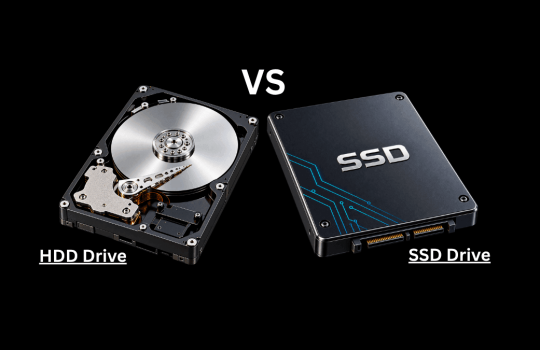
The two storage terms you will commonly see are SSD and HDD.
An SSD (Solid-State Drive) is generally much faster than a traditional HDD. A laptop with an SSD can start faster, launch applications more quickly, transfer files faster, and feel more responsive during everyday use.
An HDD can provide a large amount of storage at a relatively low cost, but it is slower and contains moving mechanical parts.
For most modern laptop buyers, we recommend choosing an SSD as the main storage drive.
- 256GB SSD: Suitable for light users who mainly store documents and use cloud storage.
- 512GB SSD: A good starting point for many students, business owners and professionals.
- 1TB or more: Better for users storing large videos, games, photographs, project files or professional media.
Don’t focus only on storage capacity. A 1TB HDD may provide more space than a 512GB SSD, but the SSD will generally provide much faster everyday performance.
4. Display
The laptop display is another important specification because you will be looking at it every time you use the computer.
A 13- or 14-inch laptop is usually easier to carry around, making it suitable for students, business travellers, and people who work from different locations.
A 15- or 16-inch laptop provides more screen space and may be more comfortable for multitasking, creative work, spreadsheets, entertainment, and other activities where a larger display is useful.
Full HD (1920 x 1080) is a good option for many laptop users because it provides a clear picture without requiring an extremely expensive display.
You should also consider:
- Screen brightness
- Colour quality
- Viewing angles
- Refresh rate
- Touchscreen support, if required
If you are a graphic designer, photographer, video editor, or another creative professional, colour accuracy and display quality become particularly important.
5. Graphics Card (GPU)
The GPU, or Graphics Processing Unit, handles graphics and visual processing.
Many laptops use integrated graphics. Modern integrated graphics can be perfectly suitable for browsing, office work, studying, watching videos, business applications, and many everyday tasks.
A dedicated GPU provides additional graphics-processing capability and is more suitable for demanding tasks such as gaming, 3D modelling, professional video editing, CAD applications, and some creative workloads.
If you are buying a laptop mainly for Microsoft Office, browsing, online meetings, schoolwork, accounting, and general business activities, you may not need to spend extra money on a powerful dedicated graphics card.
6. Battery Life and Battery Condition
Battery life is especially important if you travel frequently, attend lectures, work remotely, or regularly use your laptop away from a power outlet.
Manufacturers often provide estimated battery-life figures, but real-world battery life can vary significantly depending on how you use the laptop.
High screen brightness, gaming, video editing, background applications, and demanding software can drain the battery much faster than simple activities such as typing documents.
For a brand-new laptop, check independent reviews and real-world battery tests where possible.
Buying a UK-Used or Refurbished Laptop?
Battery condition becomes even more important when buying a used or refurbished laptop.
Ask about the battery health and, where possible, test how long the laptop lasts under normal use.
Remember that batteries naturally lose capacity as they age. A used laptop may still be in excellent overall condition while having less battery capacity than it had when it was new.
At Samstof Technologies, battery condition is one of the important areas we recommend checking when evaluating a refurbished laptop.
7. Operating System
The operating system is the main software that allows you to interact with your laptop.
Windows is widely used and supports a large range of business, educational, gaming, and professional software.
macOS is Apple’s operating system and is available on Mac computers.
ChromeOS is commonly found on Chromebooks and is designed around Google’s services and web-based applications.
The best operating system depends on the software you need, your existing devices, your familiarity with the platform, and your budget.
Before buying a laptop for professional or school purposes, confirm that the applications you need are compatible with its operating system.
8. Ports and Connectivity
Don’t forget to check the laptop’s available ports.
- USB-A
- USB-C
- HDMI
- Thunderbolt, where required
- Memory card reader
- Ethernet
- Headphone/audio jack
For example, if you regularly connect your laptop to a projector or external monitor, HDMI may be important. If you use newer accessories, external displays, docks, or fast external storage, USB-C or Thunderbolt may be useful.
Also check wireless connectivity, including Wi-Fi and Bluetooth.
Don’t assume every modern laptop has every port you need. Some thin laptops have very limited connectivity and may require adapters.
9. Build Quality, Keyboard and Portability
A laptop can have excellent specifications but still be inconvenient if it is too heavy, uncomfortable to type on, or poorly built.
If you travel regularly, attend classes, or move between offices, consider the laptop’s weight and overall size. If your laptop will mostly remain on a desk, portability may be less important.
Also inspect or research:
- Keyboard comfort
- Trackpad quality
- Hinges
- Chassis/body condition
- Cooling system
- Overall durability
A comfortable keyboard can make a significant difference if you spend several hours writing, coding, studying, or working with documents.
10. Webcam, Microphone and Speakers
For students, remote workers, business owners, and professionals, a good webcam and microphone can be important for online meetings, interviews, classes, and video calls.
Check the webcam quality, microphone, and speakers before buying, particularly if online communication is an important part of your work.
You can always use an external webcam or headset, but having good built-in hardware is more convenient.
Laptop Specifications Based on Your Needs
There is no single laptop specification that is perfect for everyone. Here is a simple starting point:
- Students: Consider a reliable processor, 8GB or 16GB RAM, 256GB or 512GB SSD, good battery life, portability, and a comfortable display.
- Business users: Look for reliable performance, 8GB-16GB+ RAM depending on your workload, SSD storage, good battery life, portability, security features, and useful connectivity options.
- Gamers: Look beyond the processor alone. A suitable dedicated GPU, sufficient RAM, fast SSD storage, good cooling, and a high-quality/high-refresh-rate display can all be important.
- Graphic designers and video editors: Consider a capable processor, 16GB RAM or more depending on your applications, fast SSD storage, suitable graphics performance, and a colour-accurate display.
- Programmers and developers: Your requirements depend heavily on what you develop. RAM, processor performance, SSD capacity, screen size, operating-system compatibility, and support for virtual machines or containers may all matter.
- Everyday users: A reliable modern processor, 8GB RAM, SSD storage, and a good Full HD display may be enough for browsing, entertainment, communication, and office work.
What Should You Check When Buying a UK-Used or Refurbished Laptop?
Specifications are only part of the buying decision when purchasing a UK-used or refurbished laptop. A laptop may have excellent specifications on paper but still have physical or hardware problems.
Before paying, check:
- Battery health: Find out whether the battery still provides reasonable backup.
- Screen: Look for lines, dead pixels, unusual colours, flickering, or other display problems.
- Keyboard: Test the keys and keyboard backlight where available.
- Trackpad: Make sure clicking, scrolling, and gestures work correctly.
- Ports: Test important USB, USB-C, HDMI, audio, and charging ports.
- Hinges: Check that the screen opens and closes properly.
- Body condition: Inspect for serious cracks, dents, or damage.
- Storage health: Make sure the SSD or HDD is functioning correctly.
- Wi-Fi and Bluetooth: Confirm wireless connectivity works properly.
- Webcam and microphone: Test them if you regularly attend online meetings.
- Charger: Confirm that the charger is compatible and works properly.
- Warranty: Understand what warranty or after-sales support the seller provides.
This is particularly important when buying refurbished laptops online. Don’t make your decision based on the processor and RAM alone.
Common Laptop-Buying Mistakes to Avoid
One common mistake is choosing a laptop only because it is cheap. A cheaper laptop may save you money initially but cost more later if it cannot handle your work or requires frequent repairs.
Another mistake is buying specifications that are far beyond your actual needs. You may spend considerably more without receiving much practical benefit from the additional performance.
Other mistakes include:
- Looking only at Core i5 or Core i7 without checking the generation
- Buying an HDD-only laptop when an SSD would significantly improve everyday performance
- Ignoring whether RAM or storage can be upgraded
- Choosing a laptop based only on appearance
- Ignoring battery condition when buying used
- Forgetting to check ports
- Ignoring warranty and after-sales support
- Buying before confirming software compatibility
The best laptop isn’t necessarily the one with the highest specifications. It is the one that meets your requirements reliably within your budget.
Laptop Buying Checklist
- Processor model and generation
- RAM capacity
- RAM upgradeability
- SSD/storage type and capacity
- Screen size and resolution
- Graphics
- Battery life or battery health
- Operating system
- Ports and connectivity
- Build quality
- Weight and portability
- Keyboard and trackpad
- Webcam, microphone and speakers
- Storage upgradeability
- Warranty and after-sales support
- Physical condition if buying used/refurbished
- Price and overall value
Saving this checklist can help you compare different laptops before making your final decision.
Final Thoughts: Choose Specifications That Match Your Needs
Buying a laptop doesn’t have to be difficult.
Instead of focusing only on the most expensive model, the biggest storage capacity, or whether the laptop says Core i5 or Core i7, start with one simple question: What am I going to use this laptop for?
Once you know that, compare the processor, RAM, SSD, display, battery, graphics, ports, build quality, and other specifications with your actual requirements and budget.
And if you are buying a UK-used or refurbished laptop, don’t stop at the specifications. Check the laptop’s physical condition, battery health, functionality, warranty, and the reputation of the seller.
The best laptop is not necessarily the most expensive one. It is the one that gives you the right combination of performance, reliability, features, and value for your needs.
Need Help Choosing the Right Laptop?
Not sure whether you need 8GB or 16GB RAM? Confused about Core i5 vs Core i7, processor generations, SSD sizes, or which laptop will handle your work?
Samstof Technologies can help.
Tell us what you want to use the laptop for and your budget, and we’ll help you identify suitable specifications and available laptop options.
Whether you need a laptop for school, business, remote work, programming, professional applications, or everyday use, our goal is to help you choose a system that matches your needs – not simply the laptop with the biggest specifications.
You can also explore our available laptops, MacBooks, computer accessories, repair services, and technical support on samstoftech.ng.
Upgrade Your Gadget. Elevate Your Business.